AKS Part 2: Key Vault Secrets
Integrating Azure Key Vault with AKS through the Secrets Store CSI Driver, managed identities, and automatic secret rotation.
The Secrets Store CSI Driver for Azure Key Vault enables the integration of Azure Key Vault as a secret store within an Azure Kubernetes Service (AKS) cluster through a CSI volume. This marks the second installment of my Azure Kubernetes Service series. In this part, we will expand on the AKS cluster we established in the initial segment. If you haven't checked out the first part, I encourage you to do so here.
Enable Azure Key Vault Secret Provider add-on for Secrets Store CSI Driver support
We'll upgrade our AKS cluster with Azure Key Vault Provider for Secrets Store CSI Driver capability using the az aks enable-addons command with the azure-keyvault-secrets-provider add-on. The add-on creates a user-assigned managed identity we can use to authenticate to our Azure key vault.
az aks enable-addons --addons azure-keyvault-secrets-provider --name myAKSCluster --resource-group myResourceGroup
Example:
az aks enable-addons --addons azure-keyvault-secrets-provider --name aks-helloworld --resource-group rg-helloworld
Verify the Azure Key Vault Provider for Secrets Store CSI Driver installation
Verify the installation is finished using the kubectl get pods command to list all pods that have the secrets-store-csi-driver and secrets-store-provider-azure labels in the kube-system namespace, and ensure that your output looks similar to the following output:
kubectl get pods -n kube-system -l 'app in (secrets-store-csi-driver,secrets-store-provider-azure)'
Output:
NAME                                     READY   STATUS    RESTARTS   AGE
aks-secrets-store-csi-driver-qh95x       3/3     Running   0          5m52s
aks-secrets-store-provider-azure-qlbg2   1/1     Running   0          5m52s
💡 Verify that each node in your cluster's node pool has a Secrets Store CSI Driver pod and a Secrets Store Provider Azure pod running.
Enable autorotation on our AKS cluster
Update an existing cluster to enable autorotation of secrets using the az aks addon update command and the enable-secret-rotation parameter.
az aks addon update -g myResourceGroup -n myAKSCluster -a azure-keyvault-secrets-provider --enable-secret-rotation
Example:
az aks addon update -g rg-helloworld -n aks-helloworld -a azure-keyvault-secrets-provider --enable-secret-rotation
Create or use an existing Azure key vault
💡 Our recommendation is to use a vault per application per environment (development, pre-production, and production), per region. This helps you not share secrets across environments and regions. It will also reduce the threat in case of a breach.
Create an Azure key vault using the az keyvault create command. The name of the key vault must be globally unique.
az keyvault create -n <keyvault-name> -g myResourceGroup -l westus
az keyvault create -n akv-helloworld -g rg-helloworld -l westus
Example:
Our Azure key vault can store keys, secrets, and certificates. In this example, use the az keyvault secret set command to set a plain-text secret called Appsettings--PageTitle
az keyvault secret set --vault-name <keyvault-name> -n <secret-name> --value <secret-name>
Example:
az keyvault secret set --vault-name akv-helloworld -n AppSettings--PageTitle --value "Welcome to our AKS cluster"
Provide an identity to access the Azure Key Vault Provider for Secrets Store CSI Driver
To access your key vault, we can use the user-assigned managed identity that we created when we create our AKS cluster. The following commands will get our identityClientId and set policy to access secrets in our key vault with get and list permissions.
$identityClientId=$(az aks show -g <resource-group> -n <cluster-name> --query addonProfiles.azureKeyvaultSecretsProvider.identity.clientId -o tsv)
#set policy to access secrets in our key vault with get and list permissions
az keyvault set-policy -n <keyvault-name> --secret-permissions get, list --spn <identity-client-id>
Example:
$identityClientId=$(az aks show -g rg-helloworld -n aks-helloworld --query addonProfiles.azureKeyvaultSecretsProvider.identity.clientId -o tsv)
#set policy to access secrets in our key vault
az keyvault set-policy -n akv-helloworld --secret-permissions get, list --spn $identityClientId
Create Secret provider class
We’ll create a Kubernetes secret to mirror our mounted secrets content. Our secrets will sync after we start a pod to mount them. When we delete the pods that consume the secrets, our Kubernetes secret will also be deleted.
To sync mounted content with a Kubernetes secret, use the secretObjects field when creating a SecretProviderClass to define the desired state of the Kubernetes secret, as shown in the following example.
We will need to gets our identityClientId and tenantId
# get identityClientId
az aks show -g <resource-group> -n <cluster-name> --query addonProfiles.azureKeyvaultSecretsProvider.identity.clientId -o tsv
# get tenantId
az account tenant list
Example:
# get identityClientId
az aks show -g rg-helloworld -n aks-helloworld --query addonProfiles.azureKeyvaultSecretsProvider.identity.clientId -o tsv

# get tenantId
az account tenant list
Create a helloworld-secret-provider.yaml file by using the following YAML. You will need to set identityClientId and tenantId
apiVersion: secrets-store.csi.x-k8s.io/v1
kind: SecretProviderClass
metadata:
  name: akv-provider-helloworld
spec:
  provider: azure
  secretObjects:
    - secretName: kv-helloworld
      type: Opaque
      data:
        - objectName: AppSettings--PageTitle
          key: AppSettings__PageTitle
  parameters:
    usePodIdentity: "false"
    useVMManagedIdentity: "true" # Set to true for using managed identity
    userAssignedIdentityID: <identityClientId> # Set the clientID of the user-assigned managed identity to use
    keyvaultName: akv-helloworld # Set to the name of your key vault
    objects: |
      array:
        - |
          objectName: AppSettings--PageTitle
          objectType: secret
          objectVersion: ""
    tenantId: <tenantId> # The tenant ID (Directory ID) of the key vault
💡 Note: Make sure the
objectNamein thesecretObjectsfield matches the file name of the mounted content. If you useobjectAliasinstead, it should match the object alias.
Apply the SecretProviderClass to our cluster:
kubectl apply -f helloworld-secret-provider.yaml
💡 Important: Deploy this to your cluster, and you should see the
secretObjectscreated in your desired namespace. However, you will not yet see the secret created. The CSI driver will not generate the secret unless there is a pod with the Key Vault secret mounted as a volume, as this secret is tied to the pod’s lifecycle. No pod, no secret. Even if you never plan on using the secret through the volume mount, you still have to mount it. Otherwise, it will not be created. This issue is down to the core CSI driver rather than the Key Vault implementation, and there is a GitHub issue to look at changing this here
Verify SecreteProviderClass successfully added to our cluster:
kubectl get secretproviderclass

NAME                      AGE
akv-provider-helloworld   17s
Update our hello-world deployment to use our secret as an environment variable
We going to update our helloworld-secret-provider.yaml file to set our Appsettings--PageTitle as an environment variable.
💡 Note: The new changes are highlighted in red.
kind: Service
apiVersion: v1
metadata:
  name: hello-world-svc
spec:
  selector:
    app: hello-world
  type: ClusterIP
  ports:
    - port: 80

---
apiVersion: apps/v1
kind: Deployment
metadata:
  name: hello-world
spec:
  replicas: 3
  selector:
    matchLabels:
      app: hello-world
  template:
    metadata:
      labels:
        app: hello-world
    spec:
      containers:
        - name: hello-world
          image: registry.tpham.org/hello-world
          readinessProbe:
            httpGet:
              path: /health
              port: 80
          resources:
            limits:
              cpu: "300m"
          ports:
            - containerPort: 80
          env:
            - name: "AppSettings__PageTitle"
              valueFrom:
                secretKeyRef:
                  name: kv-helloworld
                  key: AppSettings__PageTitle
          volumeMounts:
            - name: akv-secret-store
              readOnly: true
              mountPath: /app/akv-secret-store
      volumes:
        - name: akv-secret-store
          csi:
            driver: secrets-store.csi.k8s.io
            readOnly: true
            volumeAttributes:
              secretProviderClass: "akv-provider-helloworld"
      imagePullSecrets:
        - name: tpham-registry

---
apiVersion: autoscaling/v1
kind: HorizontalPodAutoscaler
metadata:
  name: hpa-hello-world
spec:
  scaleTargetRef:
    apiVersion: apps/v1
    kind: Deployment
    name: hello-world
  minReplicas: 1
  maxReplicas: 10
  targetCPUUtilizationPercentage: 50
Apply the new changes:
kubectl apply -f hello-world-deployment.yaml
After all of our pods updated, we should be able to refresh our application page and see the title update to Welcome to our AKS cluster
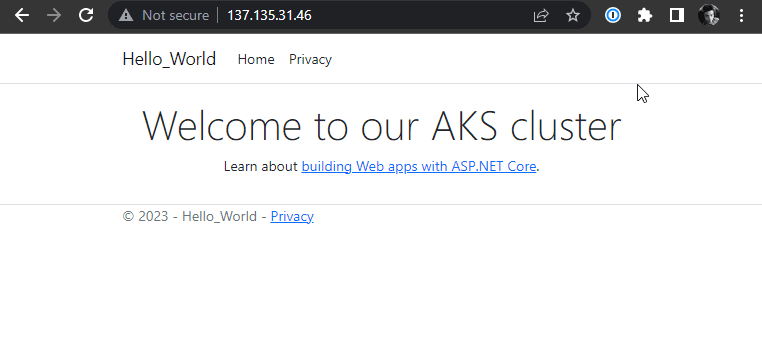
💡 Note: When the Azure Key Vault Provider for Secrets Store CSI Driver is enabled, it updates the pod mount and the Kubernetes secret that's defined in the
secretObjectsfield ofSecretProviderClass. It does so by polling for changes periodically, based on the rotation poll interval we've defined. The default rotation poll interval is 2 minutes.
💡 Note: When a secret is updated in an external secrets store after initial pod deployment, the Kubernetes Secret and the pod mount will be periodically updated depending on how the application consumes the secret data.
Mount the Kubernetes Secret as a volume: Use the autorotation and Sync K8s secrets features of Secrets Store CSI Driver. The application will need to watch for changes from the mounted Kubernetes Secret volume. When the Kubernetes Secret is updated by the CSI Driver, the corresponding volume contents are automatically updated.
Application reads the data from the container’s filesystem: Use the rotation feature of Secrets Store CSI Driver. The application will need to watch for the file change from the volume mounted by the CSI driver.
Use the Kubernetes Secret for an environment variable: Restart the pod to get the latest secret as an environment variable. Use a tool such as Reloader to watch for changes on the synced Kubernetes Secret and perform rolling upgrades on pods.
Deploy Reloader tool (optional)
When our Appsettings--PageTitle gets update from AKV, we need to restart the pods (rolling updates) to get the latest secret as an environment variable. We’ll deploy Reloader **tool to **watch for changes on the synced Kubernetes Secret and perform rolling upgrades on pods.
Deploy Reloader to our AKS:
kubectl apply -k https://github.com/stakater/Reloader/deployments/kubernetes
Update helloworld-secret-provider.yaml with the following annotations:
---
apiVersion: apps/v1
kind: Deployment
metadata:
  name: hello-world
  annotations:
    secret.reloader.stakater.com/reload: "kv-helloworld"
spec:
Apply the new changes:
kubectl apply -f hello-world-deployment.yaml
💡 Note: We can test our
Reloadertool by update ourAppsettings--PageTitlesecret in AKV and our page title should update in a couple minutes (depending on the secret rotation interval, default 2m).
To specify a custom rotation interval, use the following command:
az aks addon update -g myResourceGroup -n myAKSCluster2 -a azure-keyvault-secrets-provider --enable-secret-rotation --rotation-poll-interval 2m
Example:
az aks addon update -g rg-helloworld -n aks-helloworld -a azure-keyvault-secrets-provider --enable-secret-rotation --rotation-poll-interval 30s
💡 In the next installment, we'll focus on setting up end-to-end SSL/TLS encryption for Azure Application Gateway (AGW) using Cloudflare. We'll start by creating an origin certificate, then store it in Azure Key Vault (AKV). Additionally, we'll configure the AGIC ingress to automatically retrieve and upload the certificate to AGW.
Next: Configure AGW for End-to-End SSL/TLS Encryption with Cloudflare →